> ## Documentation Index
> Fetch the complete documentation index at: https://docs.metask.ai/llms.txt
> Use this file to discover all available pages before exploring further.

# 快速上手

> 先安装 MetaCode，再从三种方式里任选一种完成注册 / 授权，几分钟即可开始使用。

只需两步即可开始：**安装 → 选一种方式完成注册 / 授权**。授权成功后无需额外配置，直接使用。

<Note>
  最新版支持 **3 种授权方式**：网页授权（推荐）、API Key 授权、设备码授权。你只需任选一种完成即可，**不用全部都做**。
</Note>

## 第一步：安装 MetaCode

安装方式不变，依旧是复制一行命令执行。安装完成后，会继续引导你进入注册 / 授权流程。

<Tabs>
  <Tab title="Windows">
    <Steps>
      <Step title="以管理员身份打开 PowerShell">
        右键点击「开始」菜单，选择「Windows PowerShell（管理员）」。
      </Step>

      <Step title="运行安装命令">
        ```powershell theme={null}
        irm https://napi.origintask.cn/install/metacode | iex
        ```

        复制后直接运行即可，安装完成后会继续引导你进入注册 / 授权流程。
      </Step>

      <Step title="验证安装成功">
        ```powershell theme={null}
        metacode --version
        ```

        看到版本号即表示安装成功。
      </Step>
    </Steps>
  </Tab>

  <Tab title="macOS / Linux">
    <Steps>
      <Step title="打开终端">
        macOS：按 `Cmd + 空格`，搜索「终端 / Terminal」并打开。
      </Step>

      <Step title="运行安装命令">
        ```bash theme={null}
        curl -fsSL https://napi.origintask.cn/install/metacode | sh
        ```

        复制后直接运行即可，安装完成后会继续引导你进入注册 / 授权流程。
      </Step>

      <Step title="验证安装成功">
        ```bash theme={null}
        metacode --version
        ```

        看到版本号即表示安装成功。
      </Step>
    </Steps>
  </Tab>
</Tabs>

<Check>
  安装完成！下一步只需要在下面三种方式里**任选一种**完成注册 / 授权。
</Check>

## 第二步：注册 / 授权（三选一）

### 先看三种方式怎么选

<CardGroup cols={1}>
  <Card title="方式一：网页授权（推荐）" icon="globe">
    新手首选，跟着网页提示点几步即可完成。
  </Card>

  <Card title="方式二：API Key 授权" icon="key">
    适合已有账号，或希望手动创建和管理 Key 的用户。
  </Card>

  <Card title="方式三：设备码授权" icon="laptop">
    适合浏览器未自动拉起、远程机器，或更习惯按设备码完成登录的场景。
  </Card>
</CardGroup>

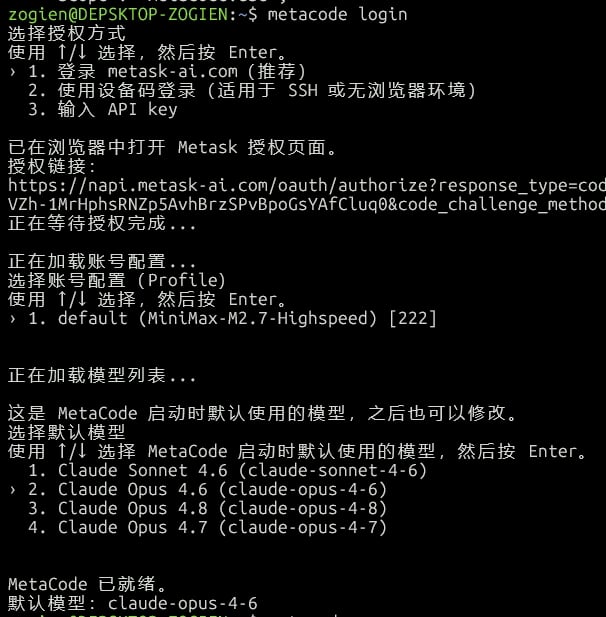
安装后，按终端或页面提示，会看到三种登录 / 授权入口，选最适合你的方式继续即可：

<Frame>
  <img src="https://mintcdn.com/origintask/3ZO8hU8zEomBcvHD/images/auth-choice.jpeg?fit=max&auto=format&n=3ZO8hU8zEomBcvHD&q=85&s=b8f251662260ca17f583acb099ef58ef" alt="MetaCode 安装后登录与授权方式选择" width="606" height="617" data-path="images/auth-choice.jpeg" />
</Frame>

### 方式一：网页授权（推荐）

<Steps>
  <Step title="选择推荐的网页授权方式">
    安装完成后，优先选择 MetaCode 推荐的网页授权方式，最省心，适合绝大多数新用户。
  </Step>

  <Step title="在浏览器里完成登录或注册">
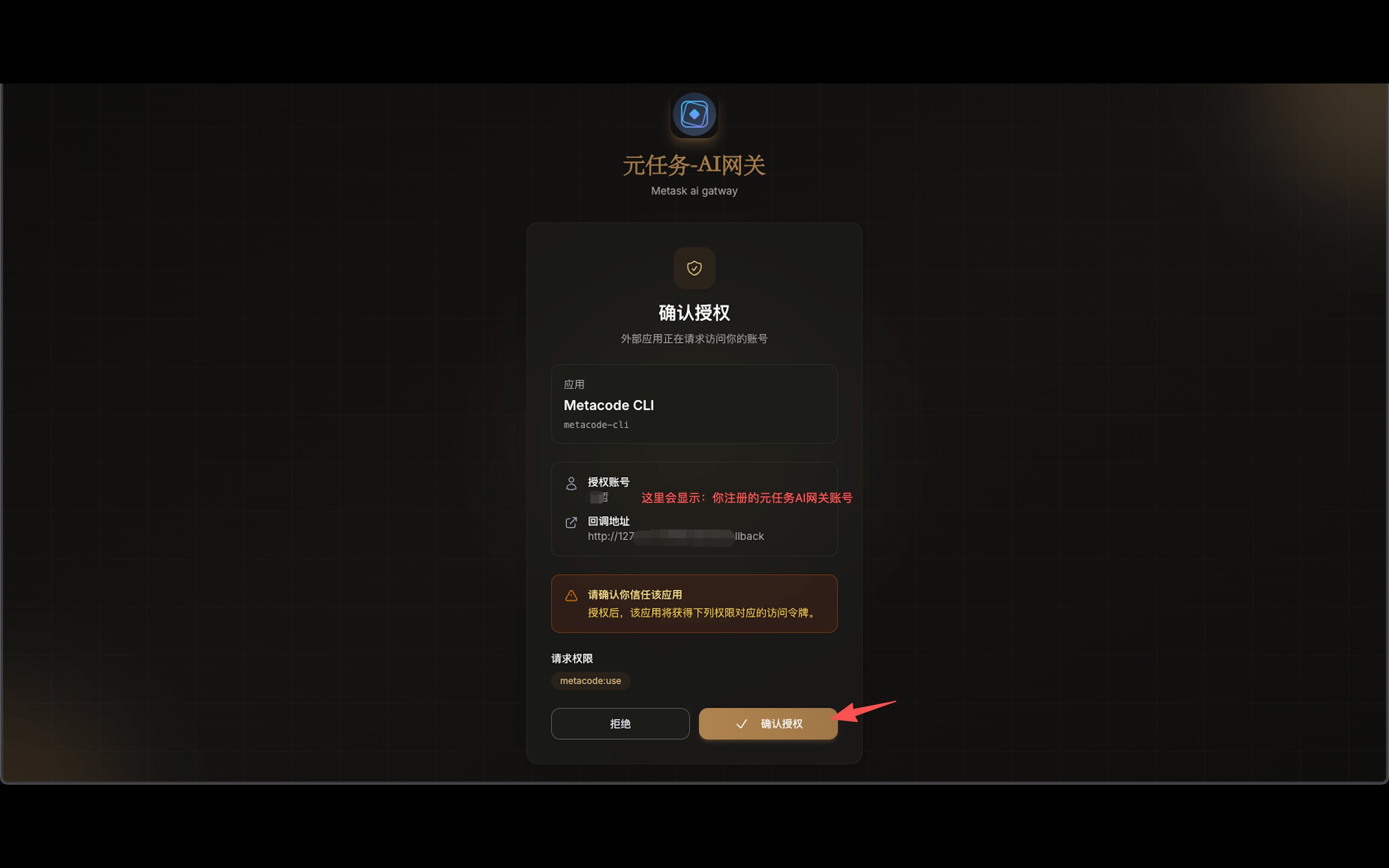
    浏览器会自动打开授权页面。还没有账号可以直接在这里注册；已有账号则直接登录并授权。

    <Frame>
      <img src="https://mintcdn.com/origintask/3ZO8hU8zEomBcvHD/images/web-auth-page.png?fit=max&auto=format&n=3ZO8hU8zEomBcvHD&q=85&s=2f275ca446ce14b894e2ef7ff7e81843" alt="MetaCode 网页授权页面" width="2880" height="1800" data-path="images/web-auth-page.png" />
    </Frame>
  </Step>

  <Step title="回到终端确认结果">
    网页确认后，终端会显示授权完成提示，说明账号已经和当前设备绑定成功。

    <Frame>
      <img src="https://mintcdn.com/origintask/3ZO8hU8zEomBcvHD/images/auth-done.png?fit=max&auto=format&n=3ZO8hU8zEomBcvHD&q=85&s=f7f69a71f34b1f5766302ed6d750171e" alt="MetaCode 授权完成提示" width="336" height="52" data-path="images/auth-done.png" />
    </Frame>
  </Step>
</Steps>

### 方式二：API Key 授权

<Card title="适用场景" icon="circle-info">
  你希望手动创建和管理 Key，或者团队内部已经在用 API Key 方式统一发放凭证。
</Card>

<Steps>
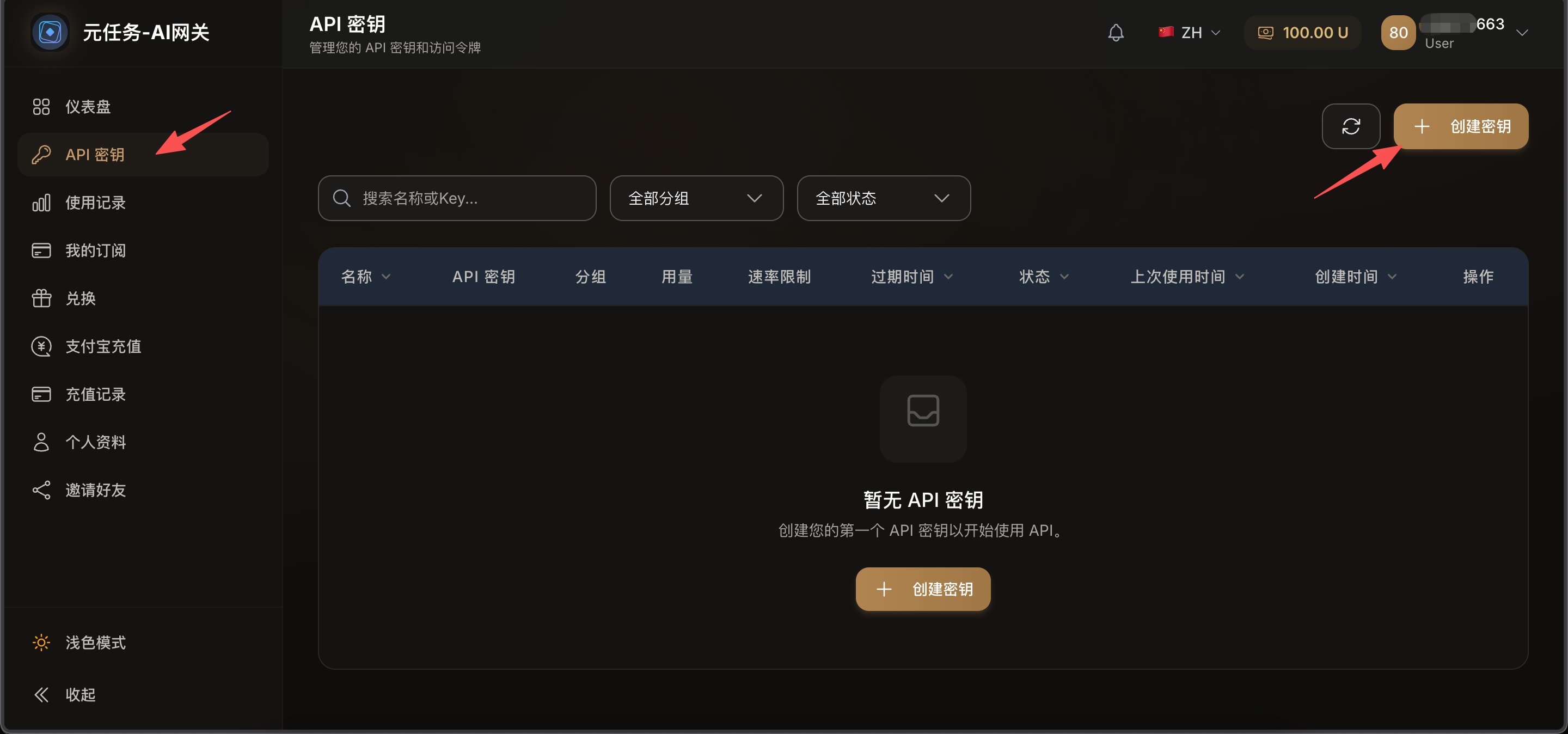
  <Step title="打开 API Key 获取页面">
    复制下面网址到浏览器打开：[https://napi.origintask.cn/keys/generatormckey](https://napi.origintask.cn/keys/generatormckey)
    <Frame>
      <img src="https://mintcdn.com/origintask/3ZO8hU8zEomBcvHD/images/apikey-open.png?fit=max&auto=format&n=3ZO8hU8zEomBcvHD&q=85&s=d3b9fa30bf10ad643f1790ba657721c1" alt="API Key 获取页面" width="2880" height="1342" data-path="images/apikey-open.png" />
    </Frame>
  </Step>

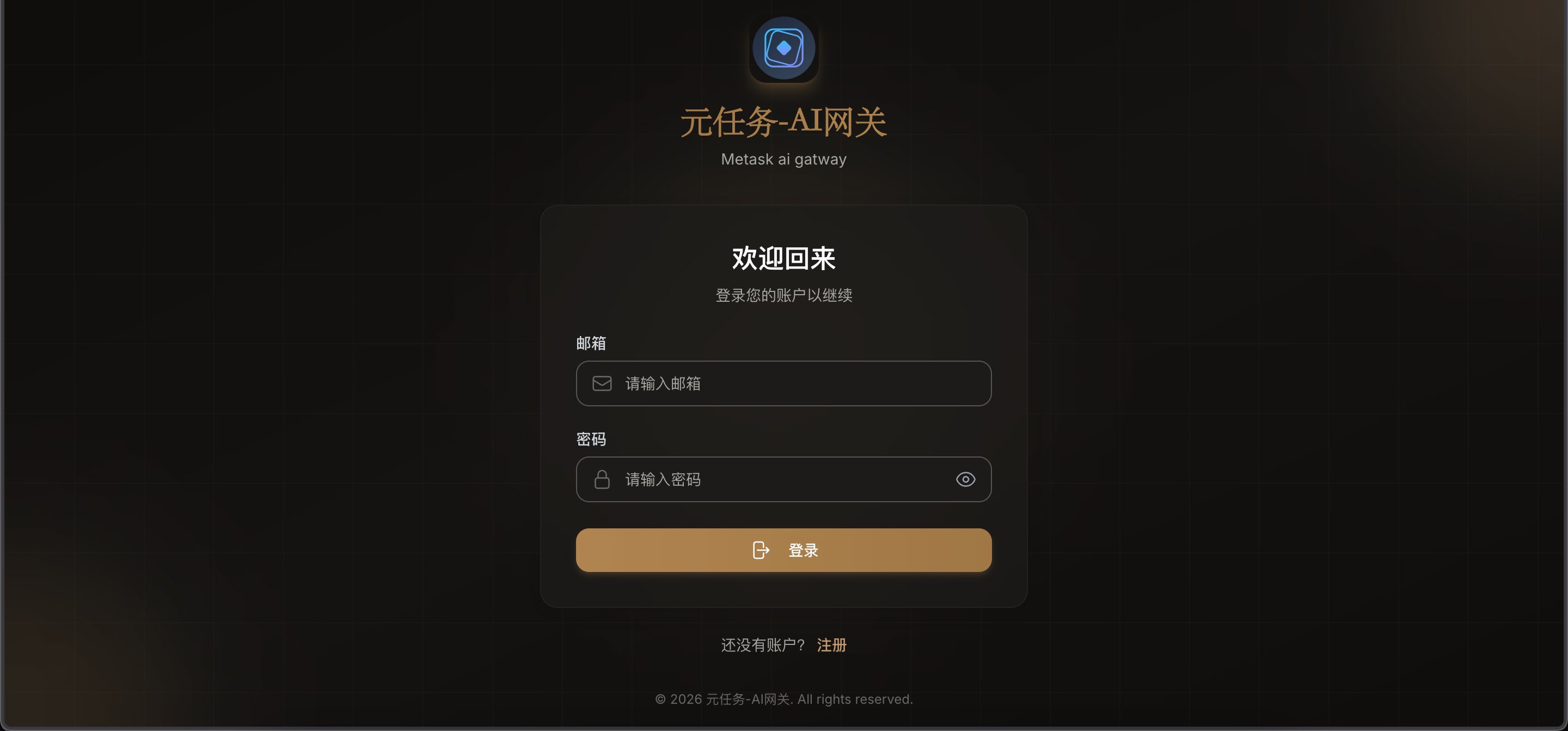
  <Step title="注册或登录账号">
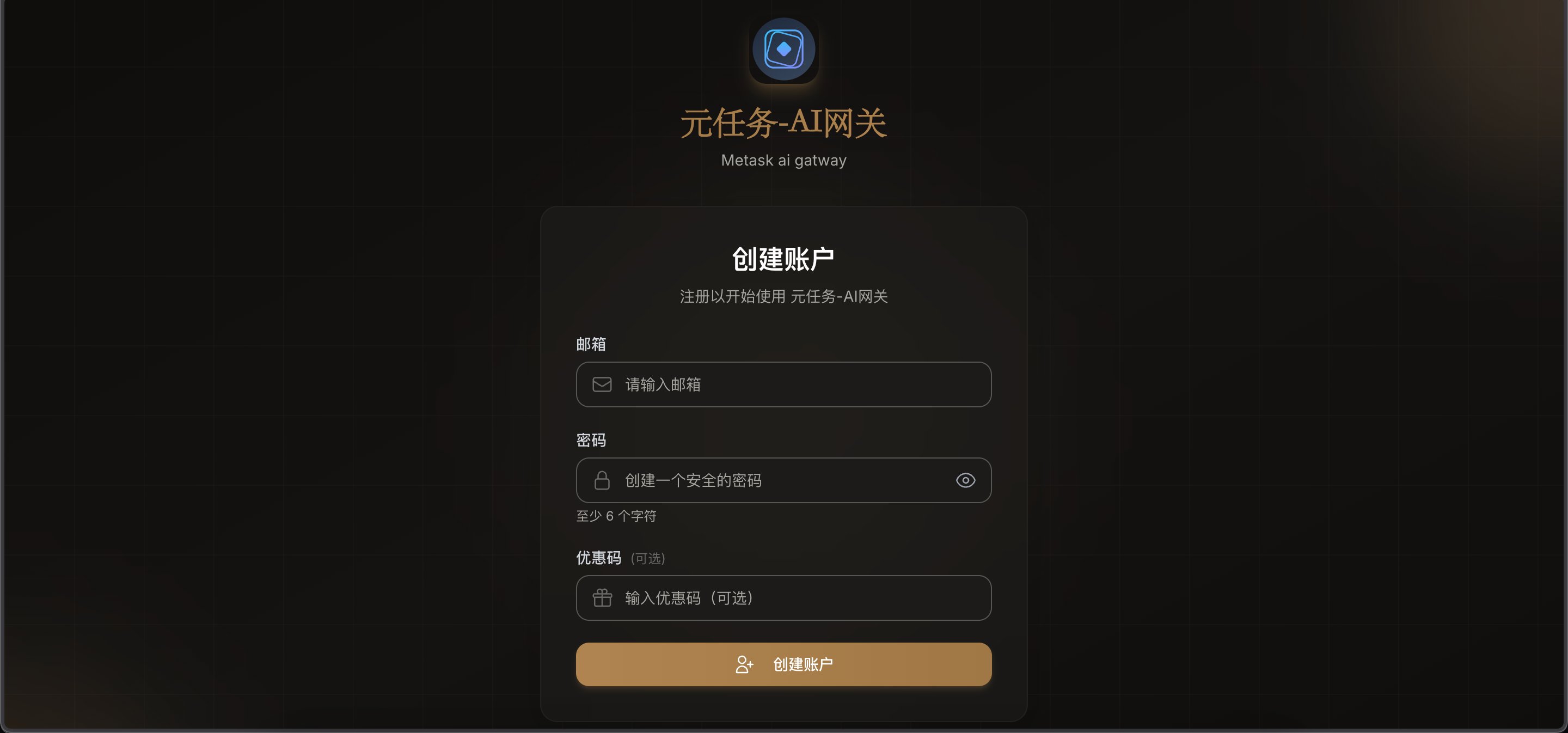
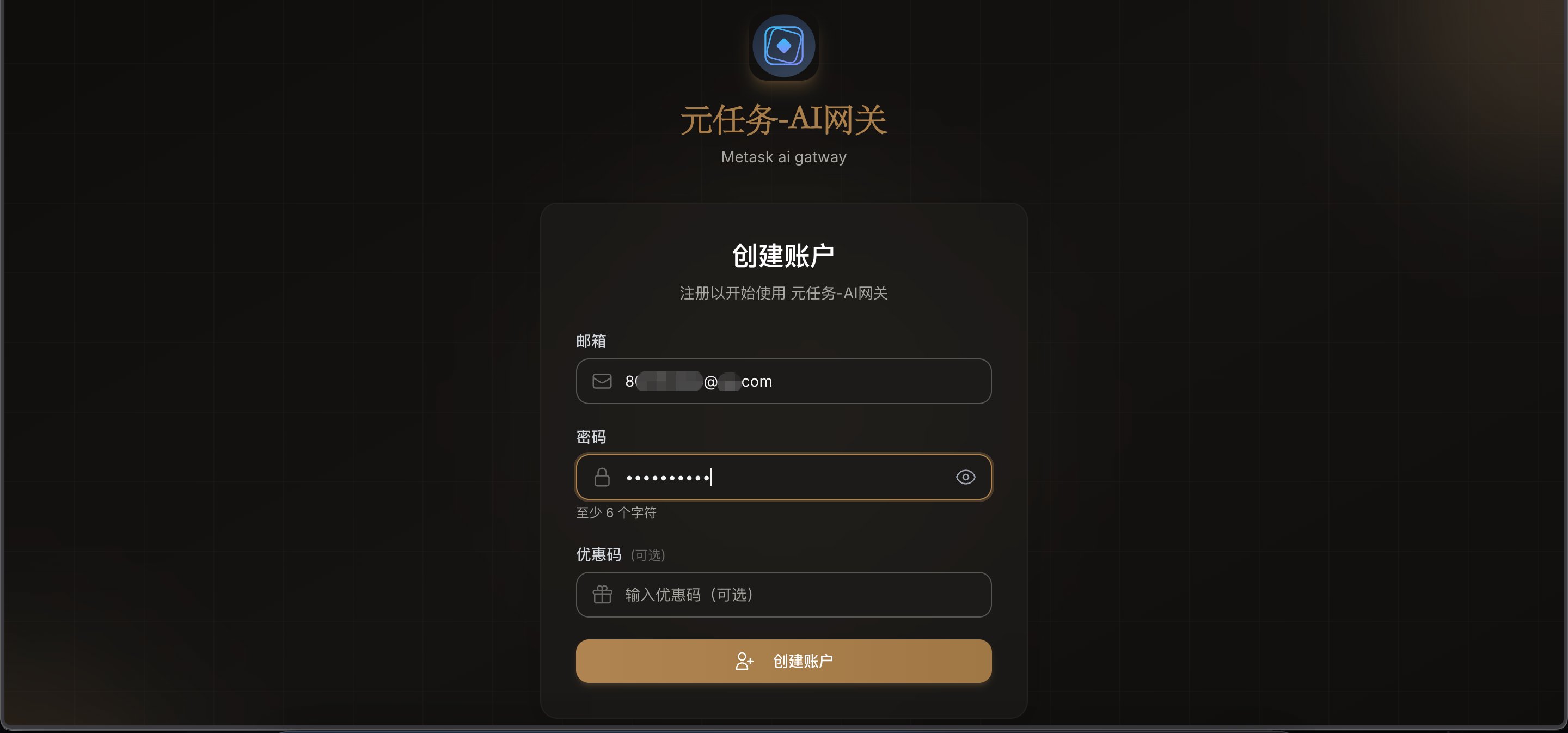
    没有账号点「注册」，已有账号点「登录」。

    <Frame>
      <img src="https://mintcdn.com/origintask/3ZO8hU8zEomBcvHD/images/apikey-register.png?fit=max&auto=format&n=3ZO8hU8zEomBcvHD&q=85&s=df5c6b29ea4afca08af987b8c592d3bd" alt="注册 / 登录页面" width="2880" height="1346" data-path="images/apikey-register.png" />
    </Frame>

    <Frame>
      <img src="https://mintcdn.com/origintask/3ZO8hU8zEomBcvHD/images/apikey-email.png?fit=max&auto=format&n=3ZO8hU8zEomBcvHD&q=85&s=0eb141118f55aa6ebae2e85546487d3e" alt="邮箱注册" width="2880" height="1346" data-path="images/apikey-email.png" />
    </Frame>
  </Step>

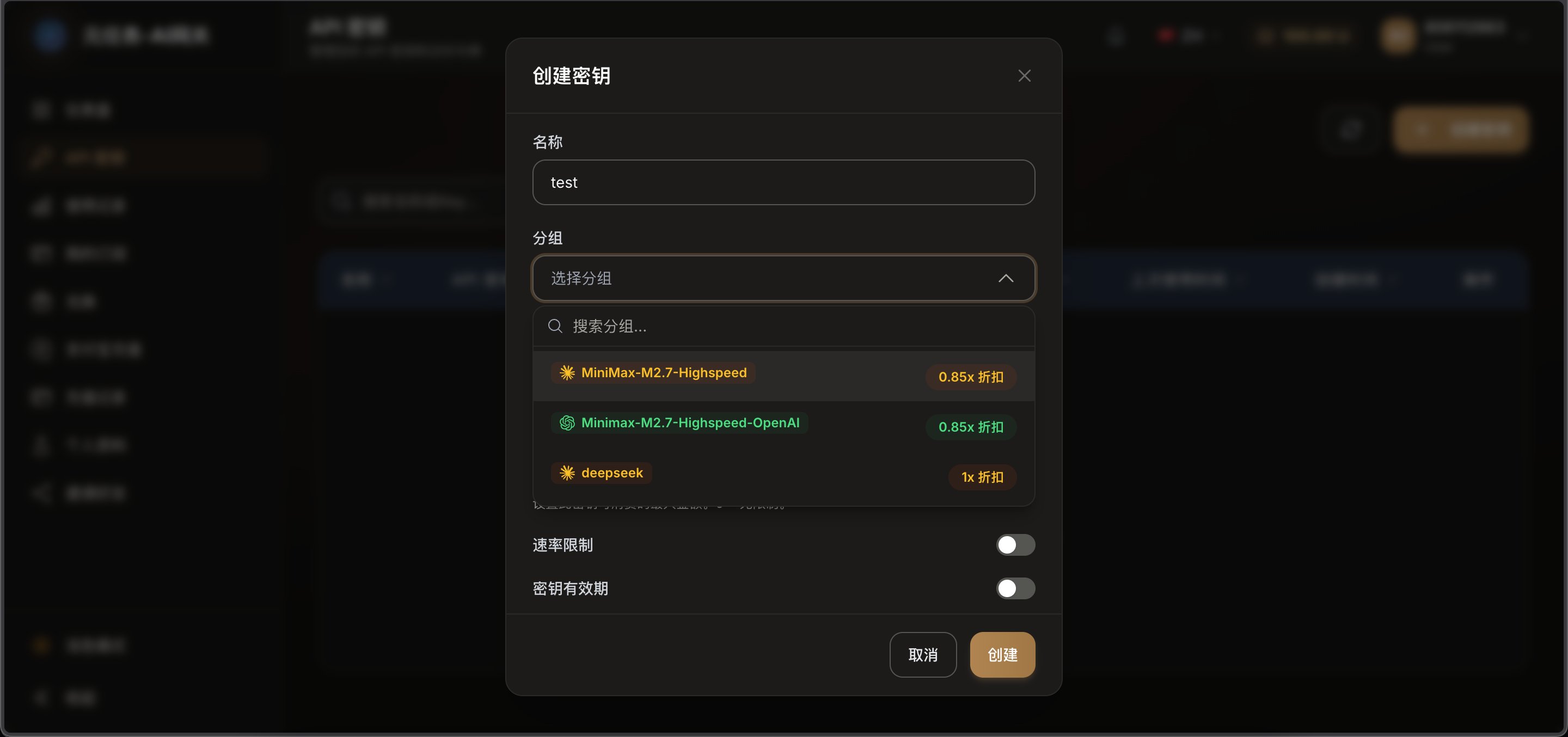
  <Step title="创建 API Key">
    登录后点「创建 / Generate」，填写 Key 名称（如「我的电脑」），选择类型和过期时间，然后创建。

    <Frame>
      <img src="https://mintcdn.com/origintask/3ZO8hU8zEomBcvHD/images/apikey-create.png?fit=max&auto=format&n=3ZO8hU8zEomBcvHD&q=85&s=80ad8025a089be67b6ea097516451ef1" alt="创建密钥" width="2880" height="1348" data-path="images/apikey-create.png" />
    </Frame>

    <Frame>
      <img src="https://mintcdn.com/origintask/3ZO8hU8zEomBcvHD/images/apikey-group.png?fit=max&auto=format&n=3ZO8hU8zEomBcvHD&q=85&s=6e74ff6a94f68cad04751b9b22966b0b" alt="配置分组" width="2880" height="1354" data-path="images/apikey-group.png" />
    </Frame>
  </Step>

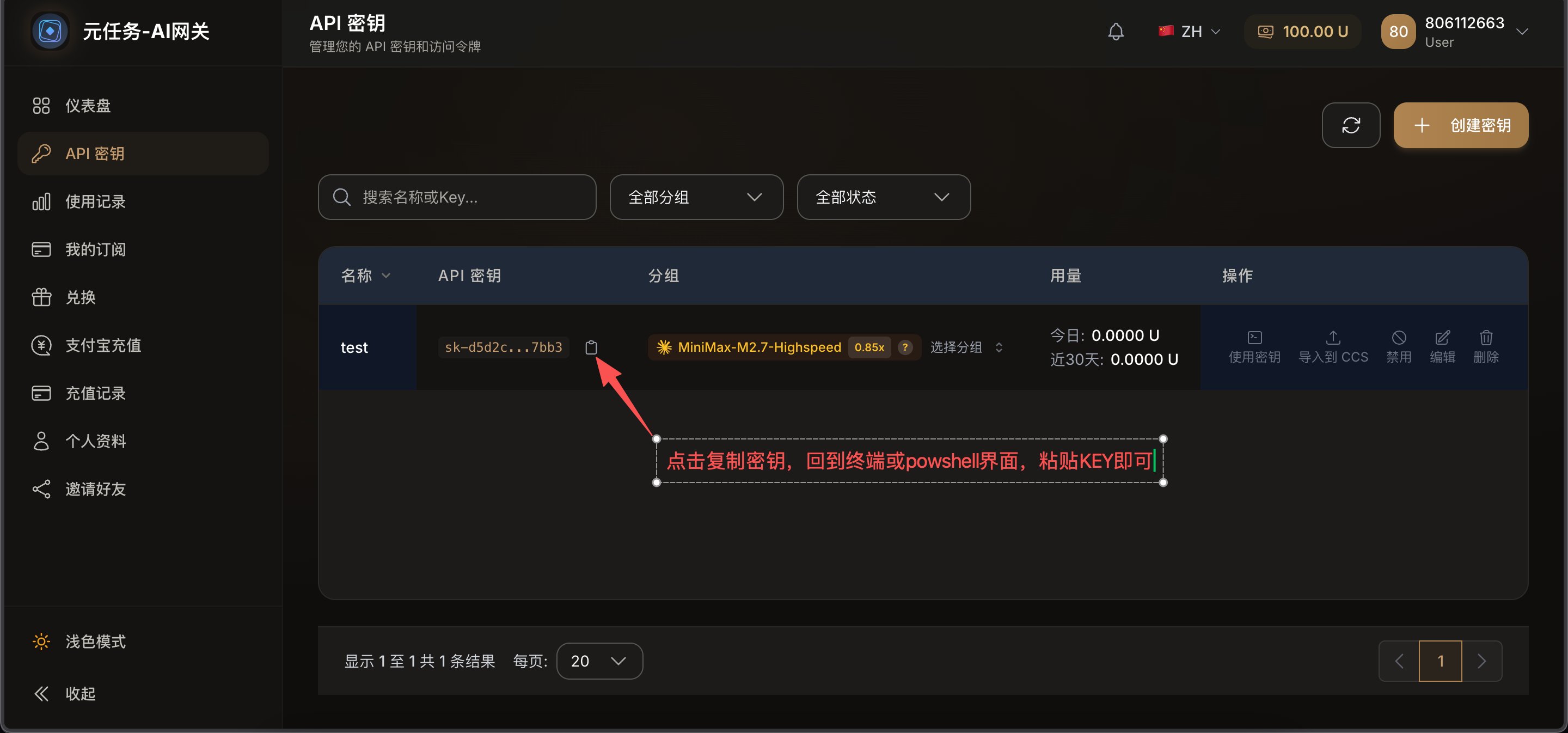
  <Step title="复制 API Key">
    创建成功后，页面会显示一串以 `sk-` 开头的密钥，复制保存好。

    <Frame>
      <img src="https://mintcdn.com/origintask/3ZO8hU8zEomBcvHD/images/apikey-get.png?fit=max&auto=format&n=3ZO8hU8zEomBcvHD&q=85&s=45f87f6c477880c399b83786f43b3b93" alt="获取 Key" width="2880" height="1346" data-path="images/apikey-get.png" />
    </Frame>
  </Step>

  <Step title="配置到本地">
    打开终端，运行：

    ```bash theme={null}
    metacode config
    ```

    终端提示输入时，粘贴刚才复制的 Key，按回车。
  </Step>

  <Step title="验证配置成功">
    ```bash theme={null}
    metacode exec --ephemeral --skip-git-repo-check "你好，请回复测试成功"
    ```

    如果 MetaCode 回复了「测试成功」，说明 API Key 授权正确。
  </Step>
</Steps>

### 方式三：设备码授权

<Card title="适用场景" icon="circle-info">
  浏览器没有自动打开、你正在远程服务器上操作，或者想手动在另一台设备上完成登录。
</Card>

<Steps>
  <Step title="选择设备码授权方式">
    在安装后的三种授权方式中，选择「设备码授权」继续。
  </Step>

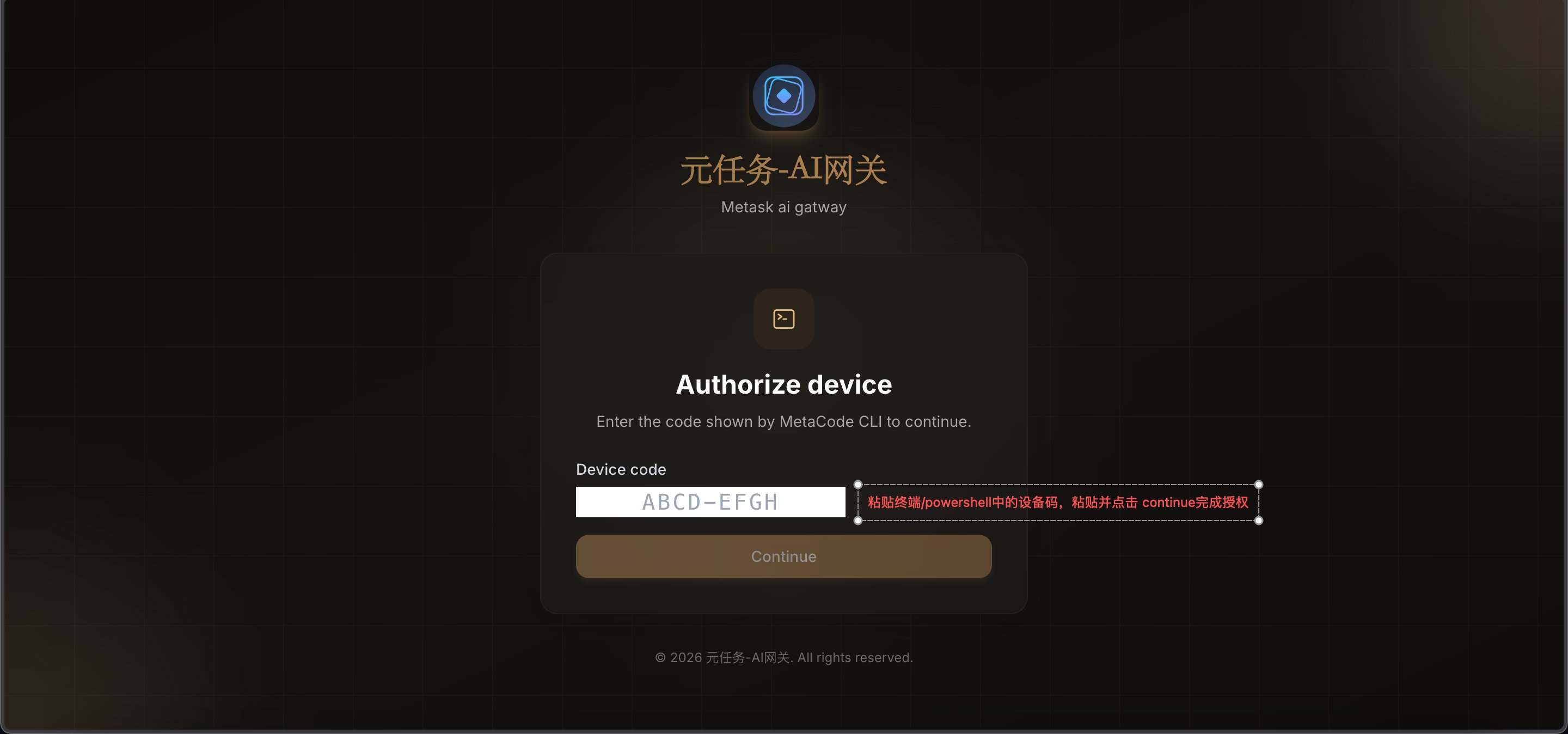
  <Step title="按页面提示打开网页并输入设备码">
    终端会给出设备码和访问地址。在浏览器中打开对应页面，输入设备码并确认授权。

    <Frame>
      <img src="https://mintcdn.com/origintask/3ZO8hU8zEomBcvHD/images/device-code.png?fit=max&auto=format&n=3ZO8hU8zEomBcvHD&q=85&s=65bafe1c5a18377847c9466725180d85" alt="设备码授权网页操作" width="2880" height="1348" data-path="images/device-code.png" />
    </Frame>
  </Step>

  <Step title="回到终端确认授权完成">
    网页确认后，终端会同步显示授权成功，你就可以开始正常使用 MetaCode。

    <Frame>
      <img src="https://mintcdn.com/origintask/3ZO8hU8zEomBcvHD/images/auth-done.png?fit=max&auto=format&n=3ZO8hU8zEomBcvHD&q=85&s=f7f69a71f34b1f5766302ed6d750171e" alt="授权完成提示" width="336" height="52" data-path="images/auth-done.png" />
    </Frame>
  </Step>
</Steps>

<Check>
  注册 / 授权完成！无论你选哪一种方式，只要完成一次，后续直接运行 `metacode` 即可使用。
</Check>

## 版本升级

<AccordionGroup>
  <Accordion title="自动更新" icon="rotate">
    MetaCode 启动时会自动检查更新，有新版本时会提示你升级。
  </Accordion>

  <Accordion title="手动升级" icon="download">
    重新运行安装命令即可升级到最新版：

    <CodeGroup>
      ```powershell Windows theme={null}
      irm https://napi.origintask.cn/install/metacode | iex
      ```

      ```bash macOS / Linux theme={null}
      curl -fsSL https://napi.origintask.cn/install/metacode | sh
      ```
    </CodeGroup>

    升级完成后，重新启动：

    ```bash theme={null}
    metacode
    ```
  </Accordion>
</AccordionGroup>

<Tip>
  装好之后，前往 [第一次使用](/first-use) 跑通你的第一个任务。
</Tip>